Usage
1. Conversion for Visualization
Generate visualization-ready MCAP files from raw EgoSuite MCAP data.
1.1 Single File Conversion
cd LW-Egosuite-DevKit
lw-egosuite convert --mcap $input_mcap_path --mcap_vis $mcap_for_vis_path
| Parameter | Description |
|---|---|
--mcap | Path to the source MCAP file (not a directory) |
--mcap_vis | (Optional) Output path. Default: {input_dir}/{input_stem}_vis.mcap |
Output path is printed at the start of conversion.
1.2 Batch Conversion
cd LW-Egosuite-DevKit

data_path="/path/to/your/data"

for input_mcap_path in "$data_path"/*.mcap; do
    [ -e "$input_mcap_path" ] || continue

    echo "Processing: $input_mcap_path ..."

    # output goes to same directory as input
    lw-egosuite convert --mcap "$input_mcap_path"
done
$data_path: The directory containing the source MCAP files. Each file will be converted and saved with a_vis.mcapsuffix in the same directory as the source file.
2. Data Visualization
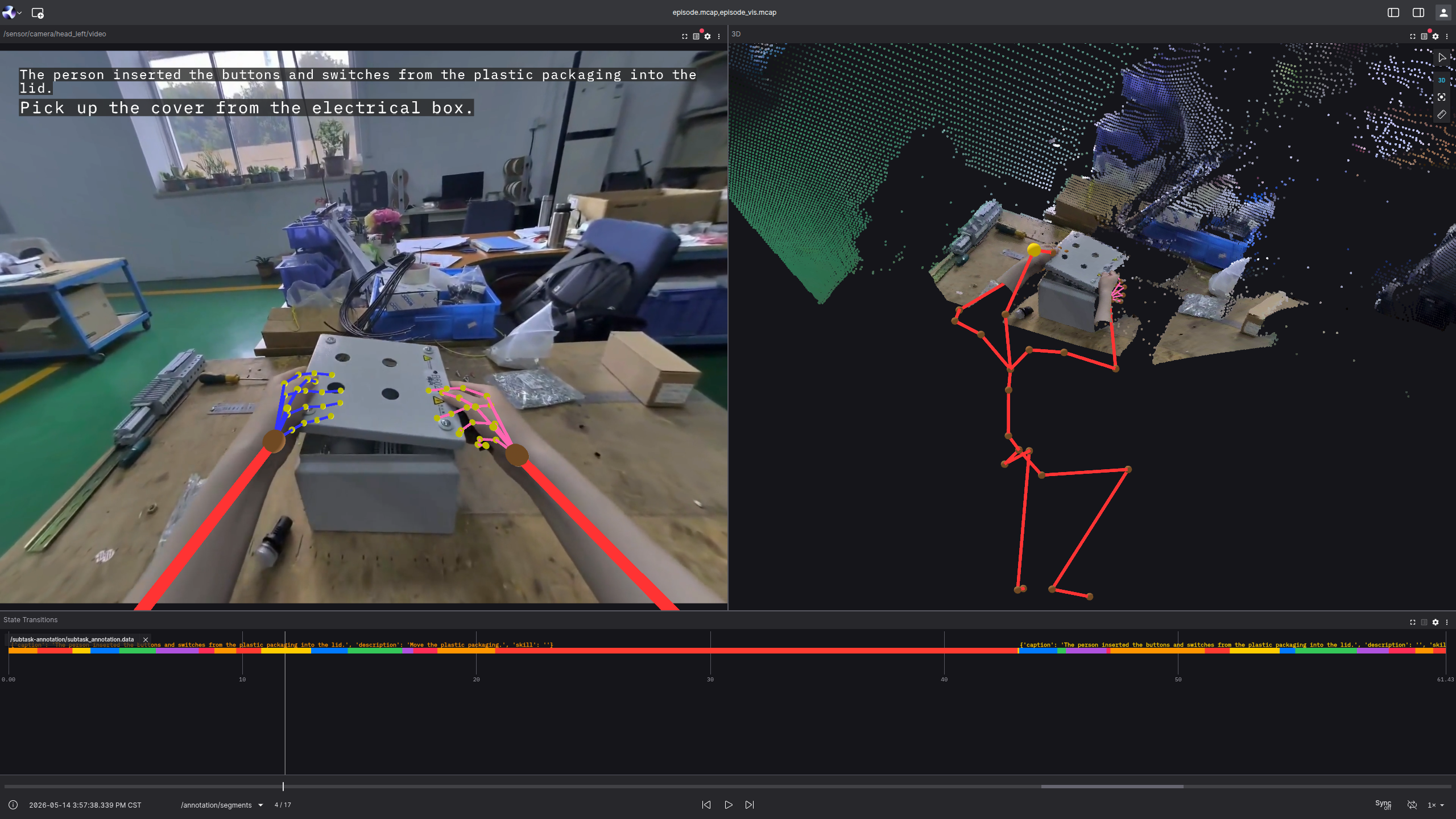
Follow these steps to visualize the processed data in LW-VIZ:
- Launch LW-VIZ: Open the LW-VIZ visualization platform.
- Import Layout: Select default mode in the Layouts option. Load the recommended configuration file:
assets/default_layout.json. - Load Data Streams: Simultaneously load the source file
mcap_filename.mcapand the generated visualization file{mcap_filename}_vis.mcap(in the same directory as the source by default).
Once loaded, the visualization will appear in the dashboard as shown below:
3. Topics
3.1 Source Topics (Raw MCAP)
The following topics are expected in the raw input MCAP file. For detailed joint index conventions, refer to the Hand Pose and Body Pose documentation. For further details on message formats and schemas, see the MCAP Data documentation.
Click to expand topic list of raw MCAP
| Topic | Proto Message | Description |
|---|---|---|
/session/metadata | session.SessionMetadata | Session-level metadata: task info, operator, episode UUID |
/pose/body | pose.BodyFrame | Full-body 22-joint skeleton in world frame |
/pose/upper_body | pose.UpperBodyFrame | Upper-body 14-joint subset (reindexed) |
/pose/lower_body | pose.LowerBodyFrame | Lower-body 8-joint subset (reindexed) |
/pose/head | pose.HeadFrame | Head pose (position + orientation) in world frame |
/pose/headcam | pose.HeadCamFrame | Head-mounted camera pose in world frame |
/pose/left_hand | pose.LeftHandFrame | Left-hand 21-joint keypoints in world frame |
/pose/right_hand | pose.RightHandFrame | Right-hand 21-joint keypoints in world frame |
/pose/right_eye_cam | pose.RightEyeCamFrame | Right eye camera pose in world frame |
/annotation/semantic_segments | annotation.SemanticSegment | Time-segmented subtask annotations |
/sensor/camera/head_left/video | foxglove.CompressedVideo | Left head camera video stream (H.264) |
/sensor/camera/head_right/video | foxglove.CompressedVideo | Right head camera video stream (H.264) |
/sensor/camera/left_wrist/video | foxglove.CompressedVideo | Left wrist camera video stream (H.264) |
/sensor/camera/right_wrist/video | foxglove.CompressedVideo | Right wrist camera video stream (H.264) |
/sensor/camera/head_left/intrinsic | foxglove.CameraCalibration | Left head camera intrinsic calibration |
/sensor/camera/head_right/intrinsic | foxglove.CameraCalibration | Right head camera intrinsic calibration |
/sensor/camera/left_wrist/intrinsic | foxglove.CameraCalibration | Left wrist camera intrinsic calibration |
/sensor/camera/right_wrist/intrinsic | foxglove.CameraCalibration | Right wrist camera intrinsic calibration |
/sensor/camera/head_left/extrinsic | foxglove.FrameTransforms | Left head camera extrinsic (camera pose in world frame; parent=world, child=camera) |
/sensor/camera/head_right/extrinsic | foxglove.FrameTransforms | Right head camera extrinsic |
/sensor/camera/left_wrist/extrinsic | foxglove.FrameTransforms | Left wrist camera extrinsic |
/sensor/camera/right_wrist/extrinsic | foxglove.FrameTransforms | Right wrist camera extrinsic |
/annotation/bad_frame/pose/hand | annotation.BadFrameHand | Per-frame hand quality flag (optional) |
/annotation/bad_frame/pose/upper_body | annotation.BadFrameBody | Per-frame upper-body quality flag (optional) |
/annotation/bad_frame/pose/lower_body | annotation.BadFrameBody | Per-frame lower-body quality flag (optional) |
/annotation/bad_frame/camera/head_left | annotation.BadFrameImage | Per-frame head-left camera quality flag (optional) |
/annotation/bad_frame/camera/left_wrist | annotation.BadFrameImage | Per-frame left-wrist camera quality flag (optional) |
/annotation/bad_frame/camera/right_wrist | annotation.BadFrameImage | Per-frame right-wrist camera quality flag (optional) |
/sensor/camera/head_depth/image | foxglove.CompressedImage | Head depth camera image (optional) |
/sensor/camera/head_depth/intrinsic | foxglove.CameraCalibration | Head depth camera intrinsic calibration (optional) |
/sensor/camera/head_depth/extrinsic | foxglove.FrameTransforms | Head depth camera extrinsic (optional) |
/sensor/camera_raw/head_left/video | foxglove.CompressedVideo | Left head camera raw (undistorted) video stream (optional) |
/sensor/camera_raw/head_right/video | foxglove.CompressedVideo | Right head camera raw video stream (optional) |
/sensor/camera_raw/left_wrist/video | foxglove.CompressedVideo | Left wrist camera raw video stream (optional) |
/sensor/camera_raw/right_wrist/video | foxglove.CompressedVideo | Right wrist camera raw video stream (optional) |
/sensor/camera_raw/head_left/calibration | sensor.camera.RawCameraCalibration | Left head camera raw intrinsic calibration (optional) |
/sensor/camera_raw/head_right/calibration | sensor.camera.RawCameraCalibration | Right head camera raw intrinsic calibration (optional) |
/sensor/camera_raw/left_wrist/calibration | sensor.camera.RawCameraCalibration | Left wrist camera raw intrinsic calibration (optional) |
/sensor/camera_raw/right_wrist/calibration | sensor.camera.RawCameraCalibration | Right wrist camera raw intrinsic calibration (optional) |
/sensor/audio | foxglove.RawAudio | Raw audio stream (PCM s16) (optional) |
3.2 Output Topics (Visualization MCAP)
The following topics are written into the _vis.mcap file by the conversion pipeline:
| Topic | Message Type | Description |
|---|---|---|
/tf-tree/tf_tree | foxglove.FrameTransforms | Coordinate frame transforms for the TF tree |
/scene-update/upper_body_keypoints | foxglove.SceneUpdate | Upper-body skeleton (spine + arms) rendered as spheres + lines |
/scene-update/lower_body_keypoints | foxglove.SceneUpdate | Lower-body skeleton (hips + legs) rendered as spheres + lines (only when lower-body joints are present) |
/scene-update/right_hand_keypoints | foxglove.SceneUpdate | Right-hand 3D skeleton (21 joints + finger bones) |
/scene-update/left_hand_keypoints | foxglove.SceneUpdate | Left-hand 3D skeleton (21 joints + finger bones) |
/scene-update/right_hand_keypoints_2d | foxglove.SceneUpdate | Right-hand skeleton projected for 2D overlay view |
/scene-update/left_hand_keypoints_2d | foxglove.SceneUpdate | Left-hand skeleton projected for 2D overlay view |
/scene-update/head_trajectory | foxglove.SceneUpdate | Head movement trajectory (jet colormap dots, last 300 frames) |
/scene-update/foot_trajectory | foxglove.SceneUpdate | Foot movement trajectory: left and right foot (jet colormap dots, last 100 frames) (only with lower-body data) |
/state-transitions/subtask_description | foxglove.Log | Subtask description text; skill appended when present |
/image-annotations/semantic_segments | foxglove.ImageAnnotations | Subtask annotation text overlaid on the camera image |
4. Reading from MCAP
4.1 Export Video (CLI)
Export video requires ffmpeg on PATH. If not installed:
sudo apt install ffmpeg
Export a foxglove.CompressedVideo topic from an MCAP file to MP4. Uses stream copy (no re-encode). Output is a valid MP4 with moov atom at the start for compatibility.
lw-egosuite export-video --mcap path/to/file.mcap --output output.mp4
| Parameter | Description |
|---|---|
--mcap | Input MCAP file path |
--output | Output MP4 file path |
--topic | (Optional) CompressedVideo topic to export. Default: /sensor/camera/head_left/video |
4.2 Iterate decoded messages (Python API)
Iterate decoded proto messages with the built-in reader:
from lw_egosuite_backend.mcap_reader import iter_messages

for m in iter_messages("out.mcap"):
    print(m.topic, m.log_time_ns, m.message)

# Filter by topics
for m in iter_messages("out.mcap", topics=["/pose/body"]):
    print(m.topic, m.message)
4.3 Decoding camera video frames (Python API)
Camera streams are stored as foxglove.CompressedVideo messages on topics such as:
/sensor/camera/head_left/video/sensor/camera/head_right/video
You can decode these into numpy.ndarray or torch.Tensor using EgosuiteMcapReader.iter_video_frames:
from lw_egosuite_backend.mcap_reader import EgosuiteMcapReader, iter_video_frames

# Using the context-managed reader:
with EgosuiteMcapReader("episode.mcap") as r:
    for frame in r.iter_video_frames("/sensor/camera/head_left/video", output="numpy"):
        # frame is a numpy.ndarray with shape (H, W, 3), dtype=uint8
        print(frame.shape, frame.dtype)

# Using the convenience helper for a single topic:
for frame in iter_video_frames(
    "episode.mcap",
    topic="/sensor/camera/head_left/video",
    output="numpy",  # or "torch"
):
    print(frame.shape)
Notes:
- Video decoding requires ffmpeg and ffprobe on PATH.
numpyis required;torchis only required whenoutput="torch".